 where every customer is a vip.
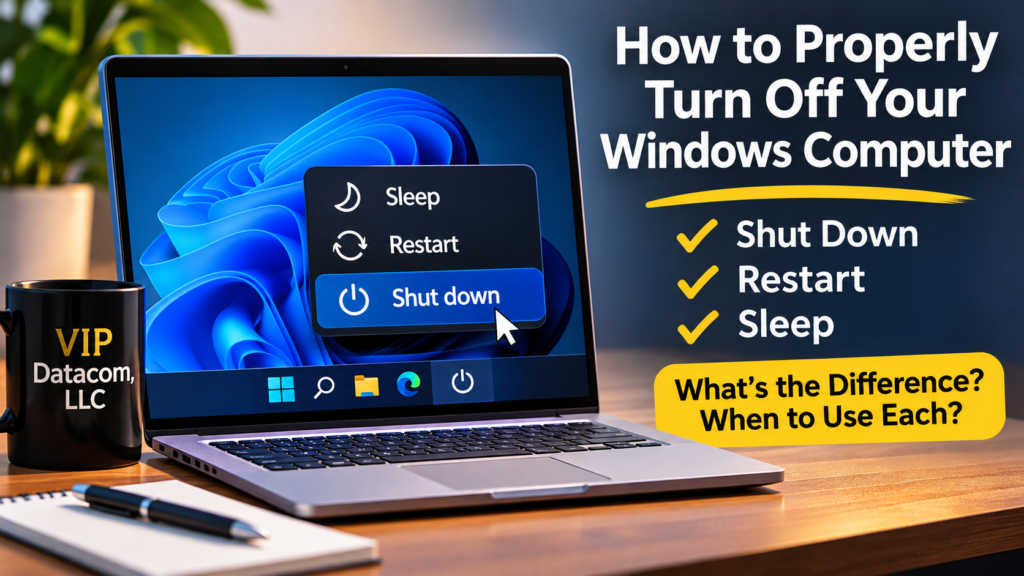
Turning off a computer sounds simple, but did you know there’s a right way to do it?
Many people simply press the power button or close their laptop lid, assuming the computer has shut down. However, those actions don’t always turn the computer off.
Understanding the difference between Shut Down, Restart, and Sleep can help you avoid lost work, resolve common computer problems, and keep your computer running smoothly.
1. The Proper Way to Shut Down Your Computer
On a computer running Windows 11:
- Save your work and close any programs you’re finished using.
- Click the Start button (the Windows logo on your taskbar).
- Click the Power symbol.
- Select Shut down.
- Wait for the computer to turn off.
That’s it!
Windows will close its programs and shut down the computer.
Windows 10 users: The procedure is nearly identical. Click Start, select Power, and then choose Shut down.
2. What Happens When You Close Your Laptop?
Closing the lid of a laptop doesn’t necessarily turn it off.
Most laptops are configured to enter Sleep mode when the lid is closed.
In Sleep mode, your computer uses a small amount of power to preserve your open programs and documents so you can resume working quickly.
However, some laptops are configured to hibernate, shut down, or do nothing when the lid closes.
If you’re putting your laptop into a carrying bag, it’s generally best to shut it down or use Hibernate rather than assuming it has entered Sleep mode. A laptop that remains running inside a bag can become unusually hot.
3. What’s the Difference Between Shut Down, Restart, and Sleep?
Shut Down
Shut Down closes your programs and powers off the computer.
It’s a good choice when you’re finished using the computer, transporting it, or leaving it unused for an extended period.
One interesting detail: Windows 10 and Windows 11 may use a feature called Fast Startup, which allows certain system information to be saved when you shut down. As a result, shutting down and turning the computer back on isn’t always equivalent to a complete restart.
Restart
Restart closes your programs and reloads Windows.
This is often the best option when your computer is behaving strangely.
For example, if programs stop responding, network connections malfunction, or Windows begins running unusually slowly, restarting may help.
A useful tip: When troubleshooting a Windows problem, try Restart instead of Shut Down.
Restart provides a more complete Windows initialization when Fast Startup is enabled.
Sleep
Sleep keeps your current work available while placing the computer into a low-power state.
It’s convenient when you’re stepping away for lunch or taking a short break.
However, Sleep is not the same as turning the computer completely off.
4. Should You Hold Down the Power Button?
Generally, no.
Holding the physical power button for thirty seconds typically forces the computer to turn off.
This can be useful when a computer is completely frozen and won’t respond to normal shutdown commands.
However, forcing the computer off can cause unsaved work to be lost and may interrupt important system operations.
Use a forced shutdown only when the normal methods aren’t working.
If your computer repeatedly freezes and requires forced shutdowns, the underlying problem should be investigated.
5. What About Windows Updates?
Sometimes Windows will display options such as:
- Update and shut down
- Update and restart
These options allow Windows to install pending updates as part of the shutdown or restart process.
When updating, allow Windows to finish. Avoid interrupting the process or disconnecting power unless absolutely necessary.
Some updates require multiple restarts, so be patient.
6. How Often Should You Restart Your Computer?
There isn’t one schedule that’s necessary for everyone.
However, if you leave your computer running continuously, restarting periodically can help clear temporary problems and finish certain Windows updates.
If your computer starts acting unusually, a restart is one of the first troubleshooting steps worth trying.
7. One More Helpful Tip: Save Your Work First
Before shutting down or restarting, make sure you’ve saved important documents.
Although many programs automatically save your work, you shouldn’t assume every application does.
A few seconds spent saving your files can prevent a lot of frustration.
Final Thoughts
Knowing how to properly turn off your computer is a simple skill that can prevent problems and make everyday computer use easier.
Remember these three important distinctions:
Shut Down: When you’re finished using the computer.
Restart: When you want to reload Windows or troubleshoot a problem.
Sleep: When you’re stepping away temporarily and want to resume quickly.
At VIP Datacom, we believe technology should make your business easier to operate, not more complicated.
With hands-on telecommunications and technology experience dating back to 1987, VIP Datacom provides business telephone services nationwide and onsite networking and technical support throughout the Dallas–Fort Worth area.
VIP Datacom, LLC — Where every customer is a VIP.